智能实验室管理系统用户指南帮助用户更好地了解 Nofar 的产品。Nofar 的产品功能强大且易于使用,让新用户更容易上手。

Laboratory Consumables Management System Product Manual
Version: V1.0
Consumables Catalog
Enter the "Material Management" - "Consumables Catalog" module, click the "Add Consumables" button in the upper left corner, fill in the consumables information on the new page and click "Save". It supports fuzzy search by consumable name and filtering by material. Click "Edit" or "Delete" in the operation bar to modify or delete the consumables information.
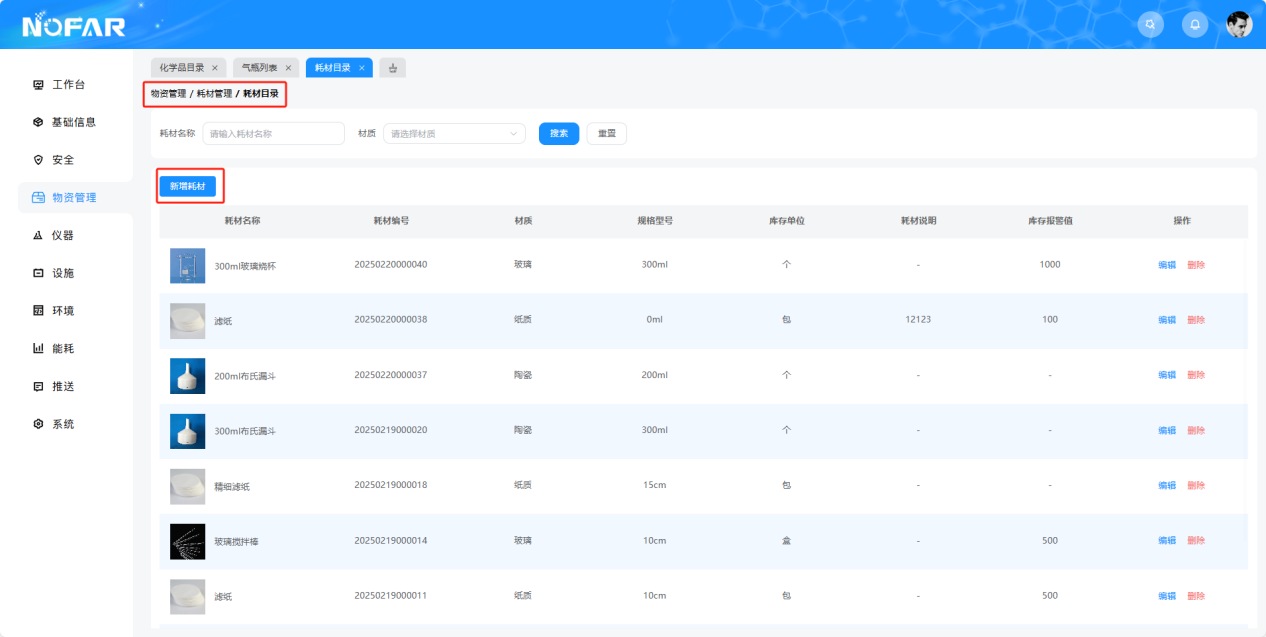
Figure: Consumables catalog entry
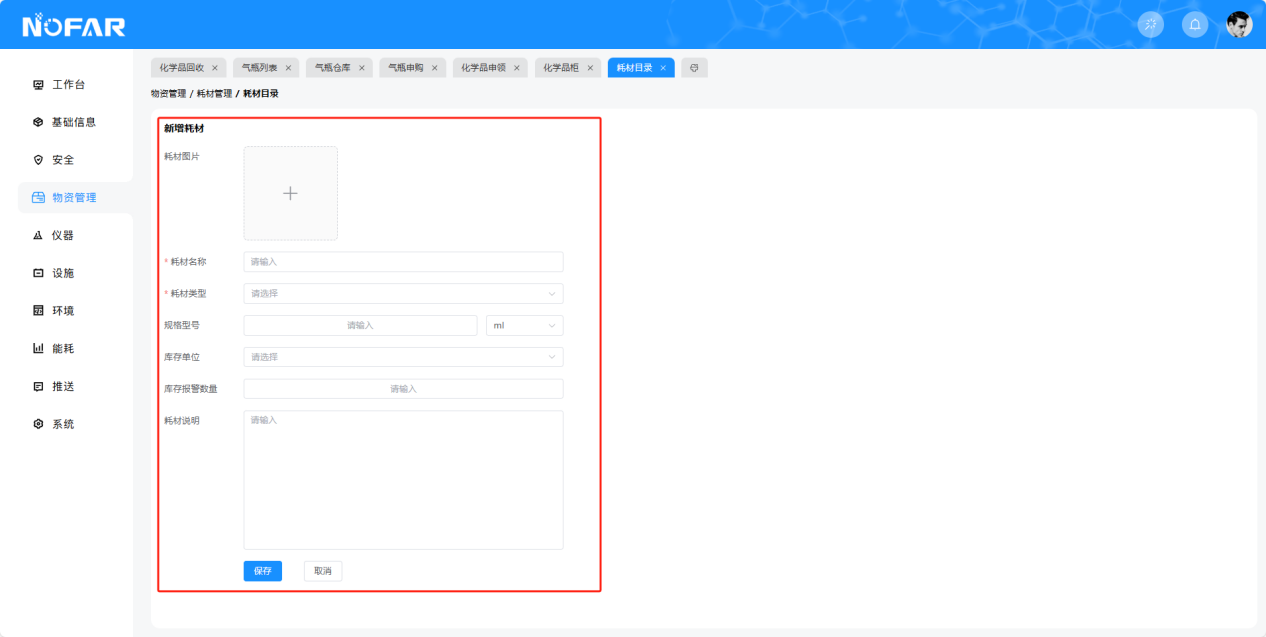
Figure: New consumables
The relevant parameters are described as follows:
parameter | illustrate |
Consumables pictures | Upload pictures of consumables |
Consumables Name | Required |
Consumables types | Consumables types include: glass, plastic, metal, ceramic, paper, other |
Specifications | Optional |
Stock keeping unit | According to the actual situation of consumables, select the appropriate inventory unit, including pieces, packages, boxes, and cases. |
Inventory alarm quantity | Used to set consumable inventory alarms. When the number of consumables is less than the set number, the alarm can be viewed immediately on the page. |
Consumables Description | Optional |
Consumables warehouse
Enter the "Material Management" - "Consumables Warehouse" module, click the "Add Warehouse" button in the upper left corner, fill in the warehouse information on the new page and click "Save". Fuzzy search by warehouse name and warehouse manager is supported. Click "Edit" or "Delete" in the operation bar to modify or delete the consumables warehouse.
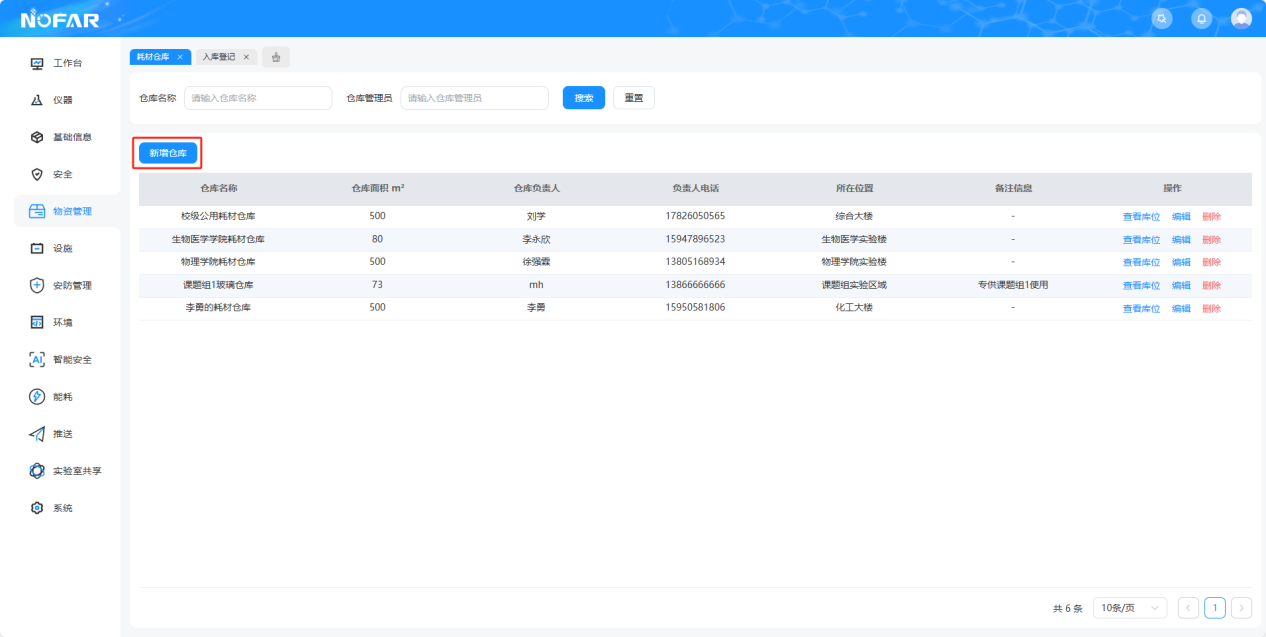
Image: Entrance to the consumables warehouse
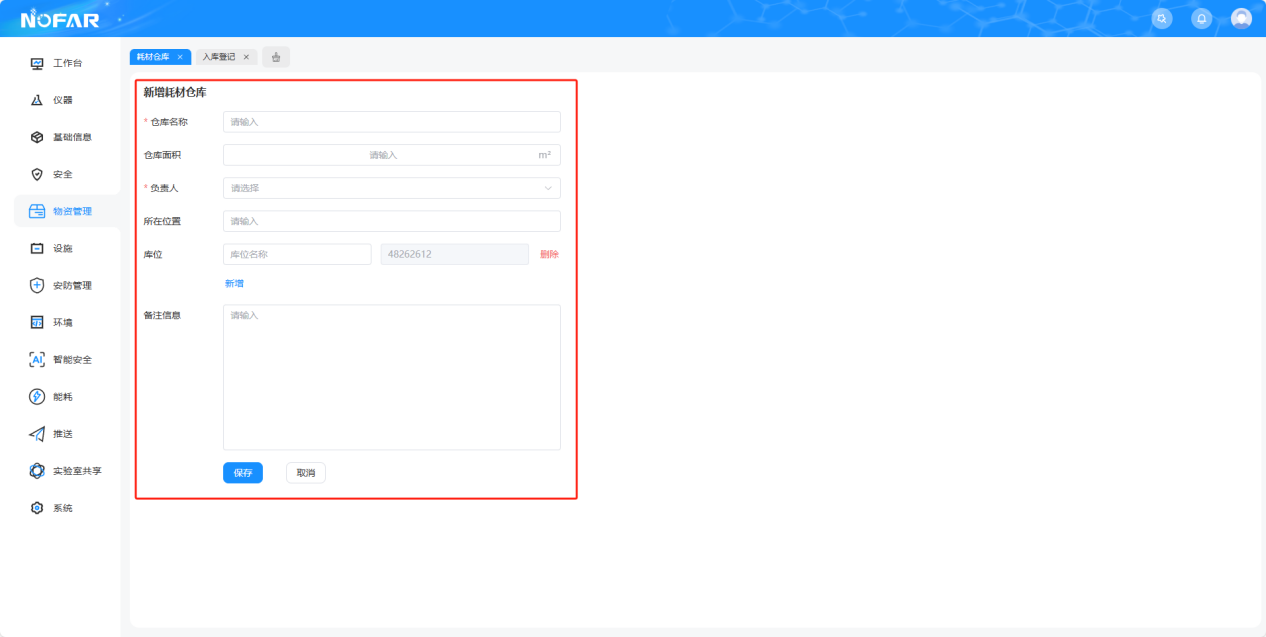
Figure: New consumables warehouse
Click "View Storage Location" in the operation bar to view the storage location details under the warehouse.
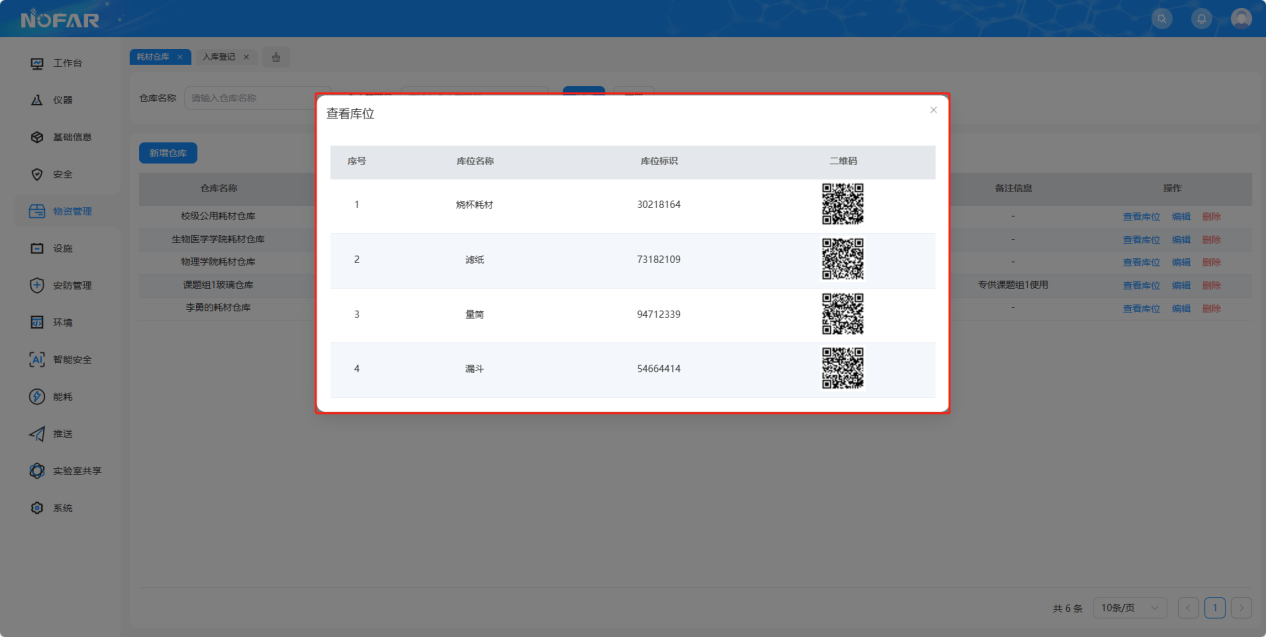
Figure: Storage location details
The relevant parameters are described as follows:
parameter | illustrate |
Warehouse Name | Required |
Warehouse area | Optional |
Person in charge | Required, select the person in charge of the warehouse |
Location | Optional, fill in the location of the warehouse, such as: Second Floor of Chemical Building |
Storage location | Optional. Set different storage locations for each warehouse according to actual needs. Each storage location can represent a shelf, such as a beaker storage shelf or a glass rod storage shelf. Each shelf generates a QR code, which can be scanned with a mobile phone to receive it. |
Remarks | Optional |
Consumables Purchase
Enter the "Material Management" - "Consumables Purchase" module, click the "Consumables Purchase" button in the upper left corner, fill in the consumables to be purchased and their purpose and other information in the newly added page, and submit the purchase application.After the application is submitted, the purchase order needs to be reviewed by the administrator. After the review is passed, the relevant consumables can be purchased (the administrator can enter the system and click "View Details" in the consumables purchase list to view the purchase details and conduct a review).
Supports fuzzy search by applicant and laboratory, and supports filtering by application time. Click "View Details" in the operation bar to view application details.
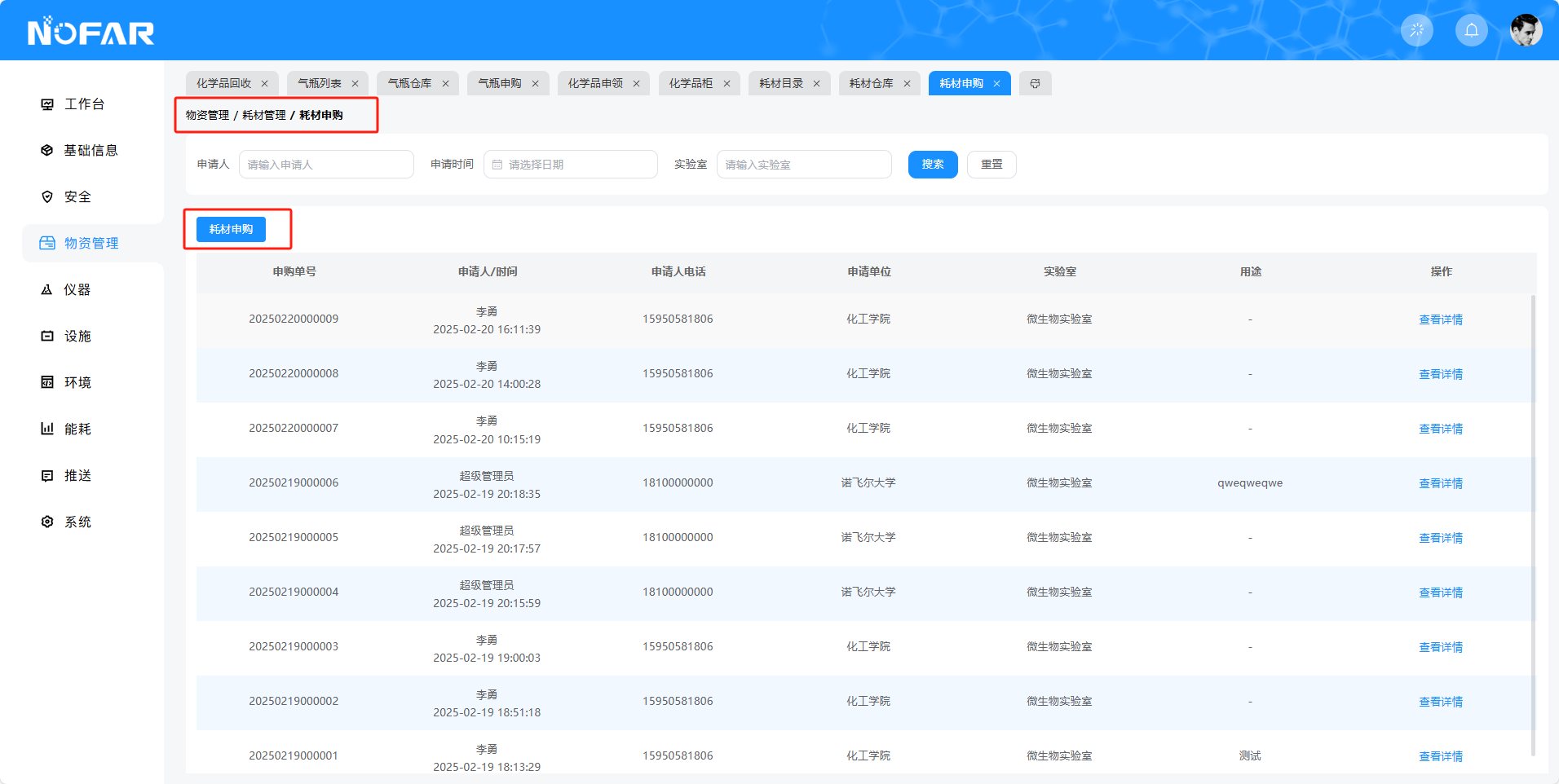
Figure: Consumables purchase portal
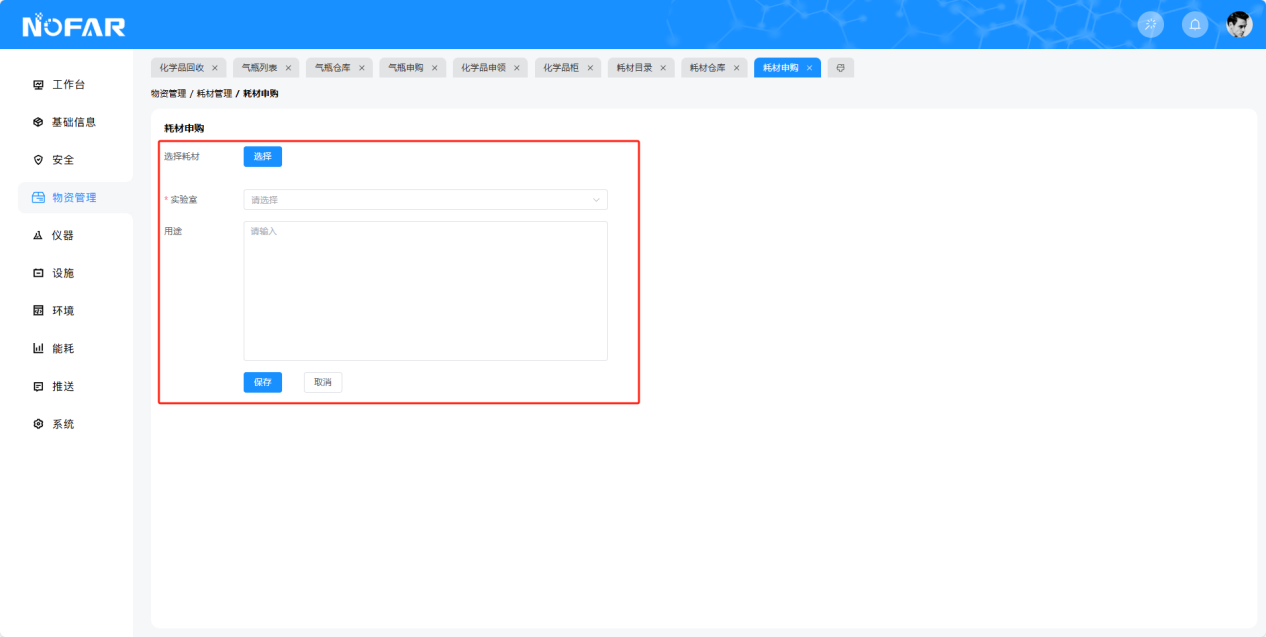
Figure: New subscription
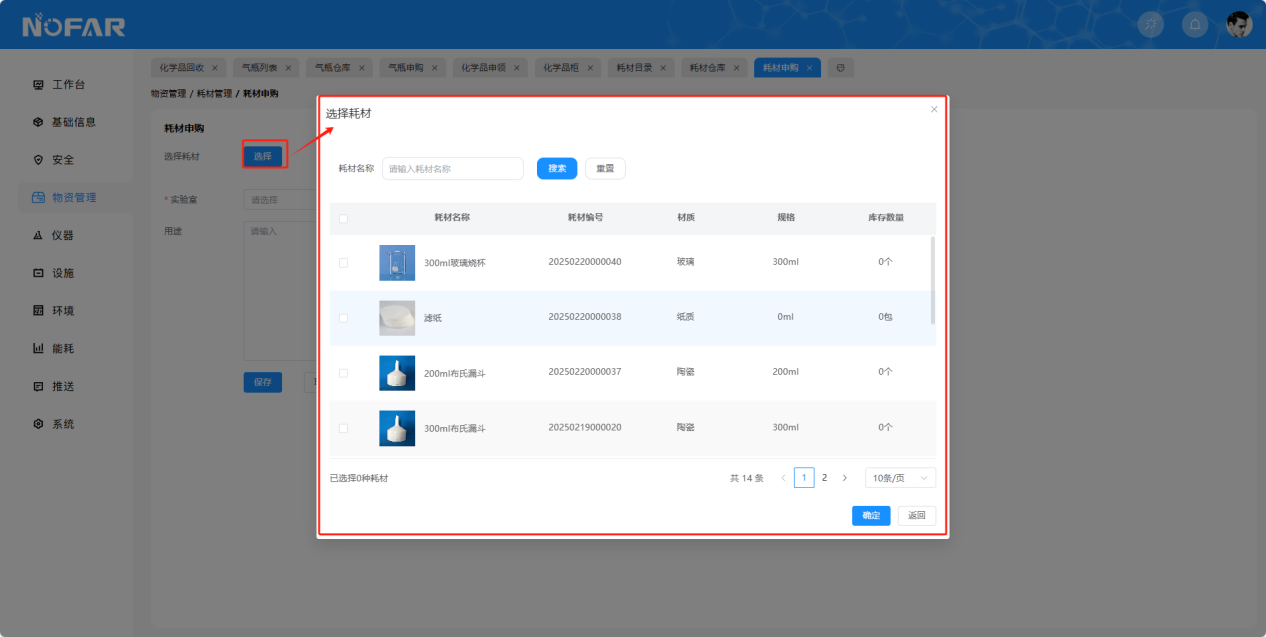
Figure: Add new subscription - Select consumables
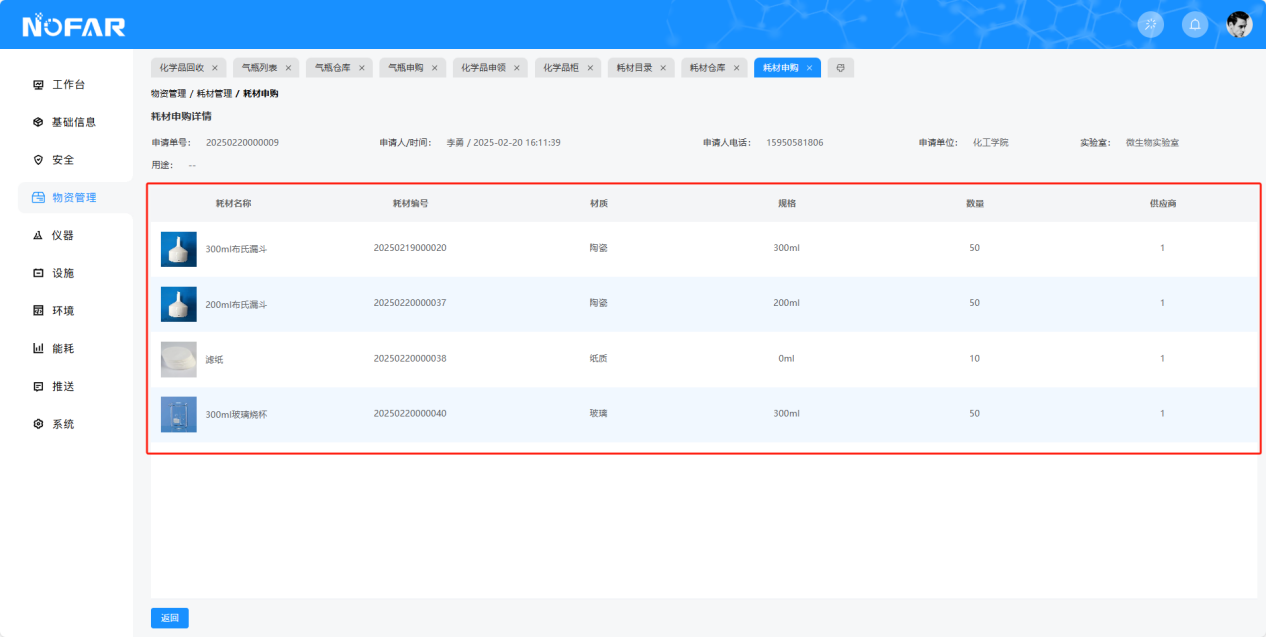
Figure: Subscription details
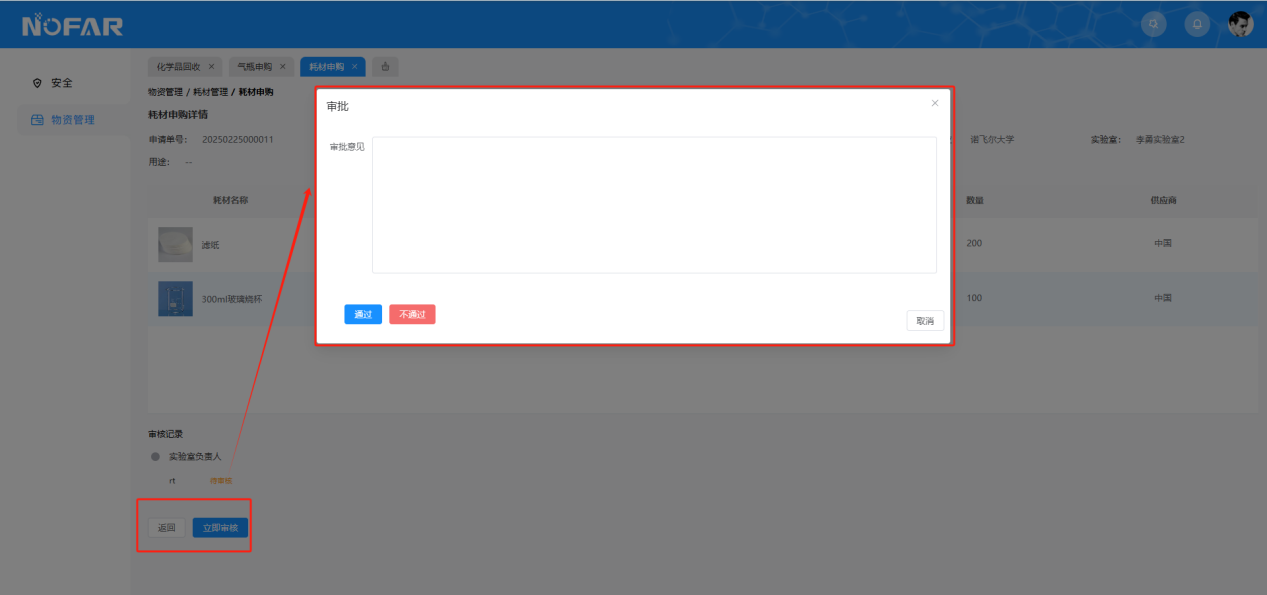
Figure: Administrator approval page
The relevant parameters are described as follows:
parameter | illustrate |
Select Consumables | Select the consumable |

ISO Quality Management System Certification

Certified Software Enterprise

AAA Credit-Rated Enterprise

Member of the Laboratory Management Branch of the China Association of Higher Education

Member of Jiangsu Association for Artificial Intelligence

Council Member of Jiangsu Renewable Energy Industry Association

Nofar Information Technology Co., Ltd.


Facebook Instagram LinkedIn
Intelligentization of university laboratories
Intelligentization of inspection & testing laboratories
Intelligentization of biomedical laboratories
Intelligentization of petrochemical laboratories
Intelligentization of hospital & disease control laboratories
Intelligentization of scientific research institution laboratories
Intelligentization of new energy laboratories