
Laboratory Chemical Management Product Brochure
Version: V1.0
Chemical Catalog
Enter the "Material Management" - "Chemical Catalog" module, click the "Add Hazardous Chemicals" button in the upper left corner, fill in the chemical information in the pop-up window and click "Save".
Supports fuzzy search by chemical name and CAS number. Click "Edit" or "Delete" in the operation bar to modify or delete the chemical information.
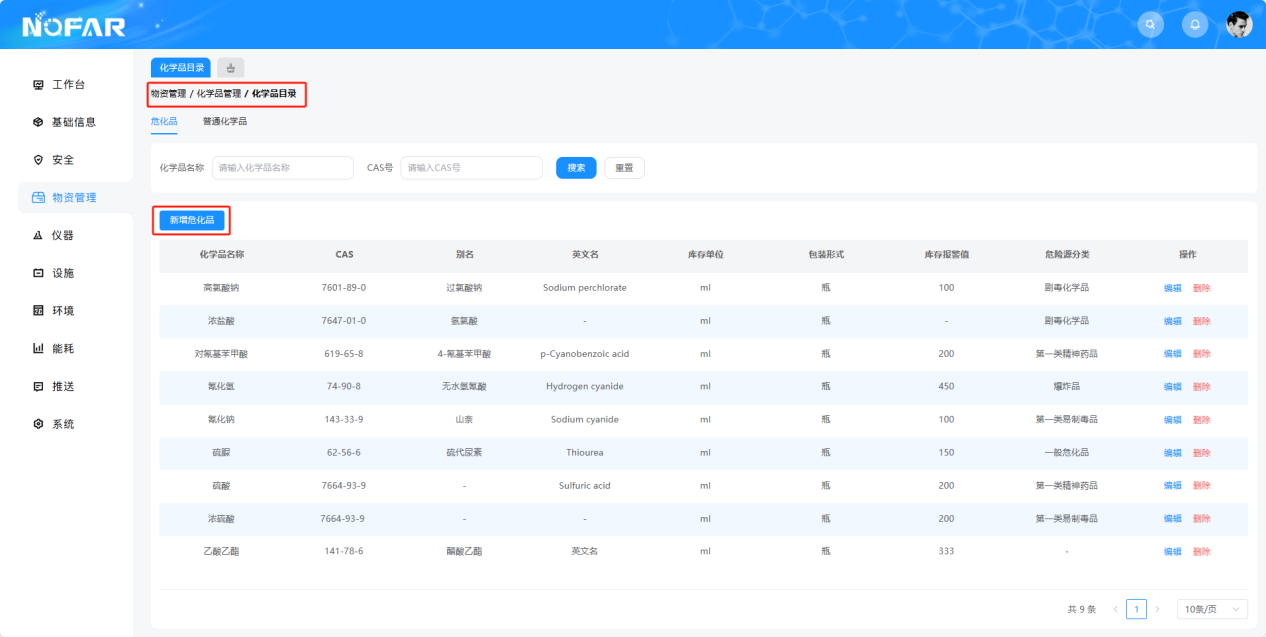
Figure: Chemical catalog entry
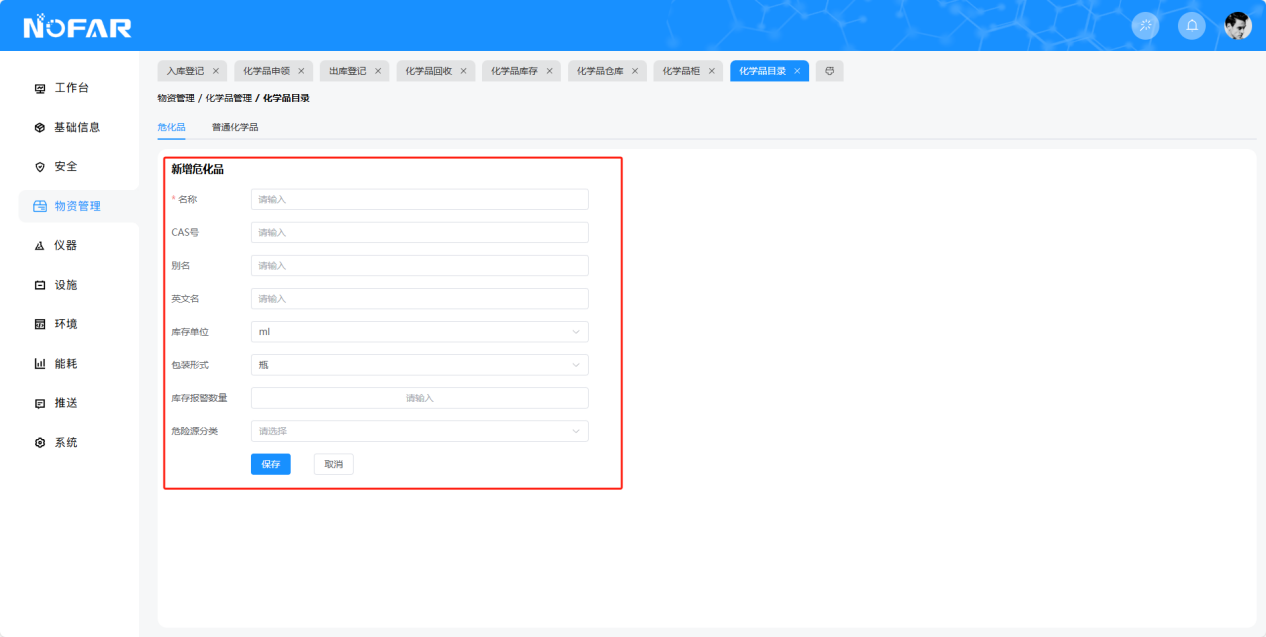
Figure: Newly added chemicals
The relevant parameters are described as follows:
parameter | illustrate |
name | Chemical Name |
CAS Number | Unique digital identification code for chemicals |
Aliases | Optional |
English name | Optional |
Stock keeping unit | According to the actual situation of the chemical, select the appropriate inventory unit, including ml, l, g, mg, kg |
Packaging | According to the actual situation of the chemicals, choose the appropriate packaging form, including bottles, boxes, bags, other, |
Inventory alarm quantity | Used to set chemical inventory alarms. When the chemical quantity is less than the set quantity, the alarm can be viewed immediately on the page. |
Hazard Classification | According to the type of chemical, select the corresponding hazard source classification |
Chemical warehouse
Enter the "Material Management" - "Chemical Warehouse" module, click the "Add Warehouse" button in the upper left corner, fill in the warehouse information in the pop-up window and click "Save". It supports fuzzy search by warehouse name and warehouse manager, and supports filtering by warehouse type. Click "Edit" or "Delete" in the operation bar to modify or delete the chemical warehouse.
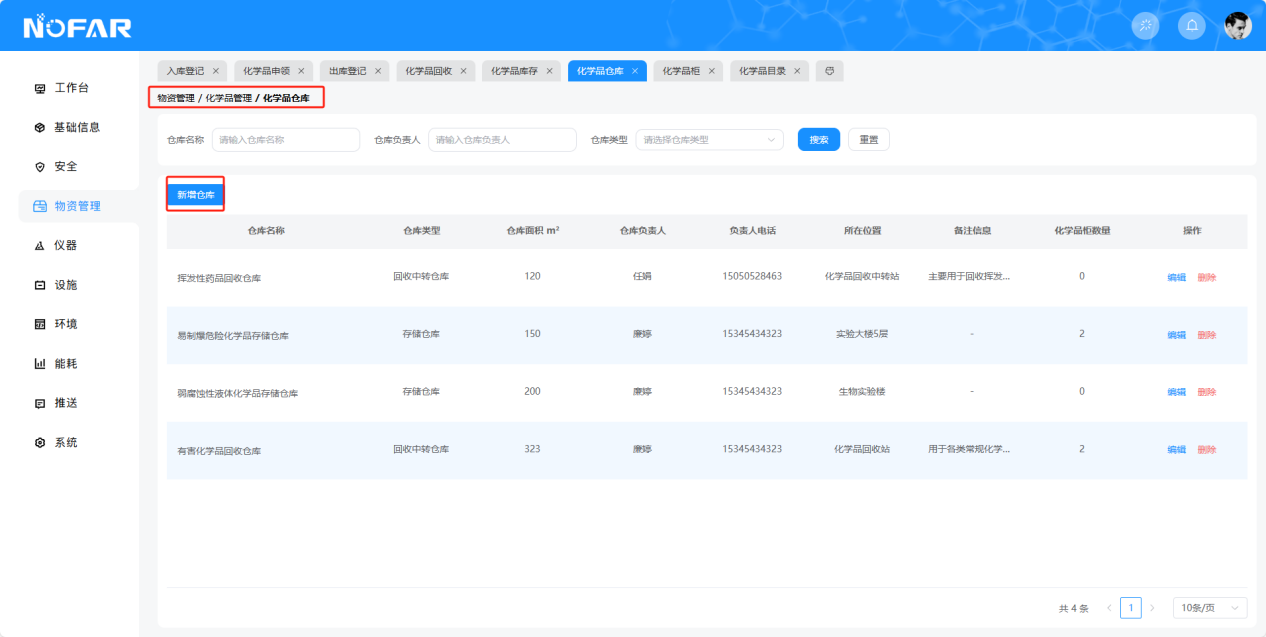
Photo: Entrance to chemical warehouse
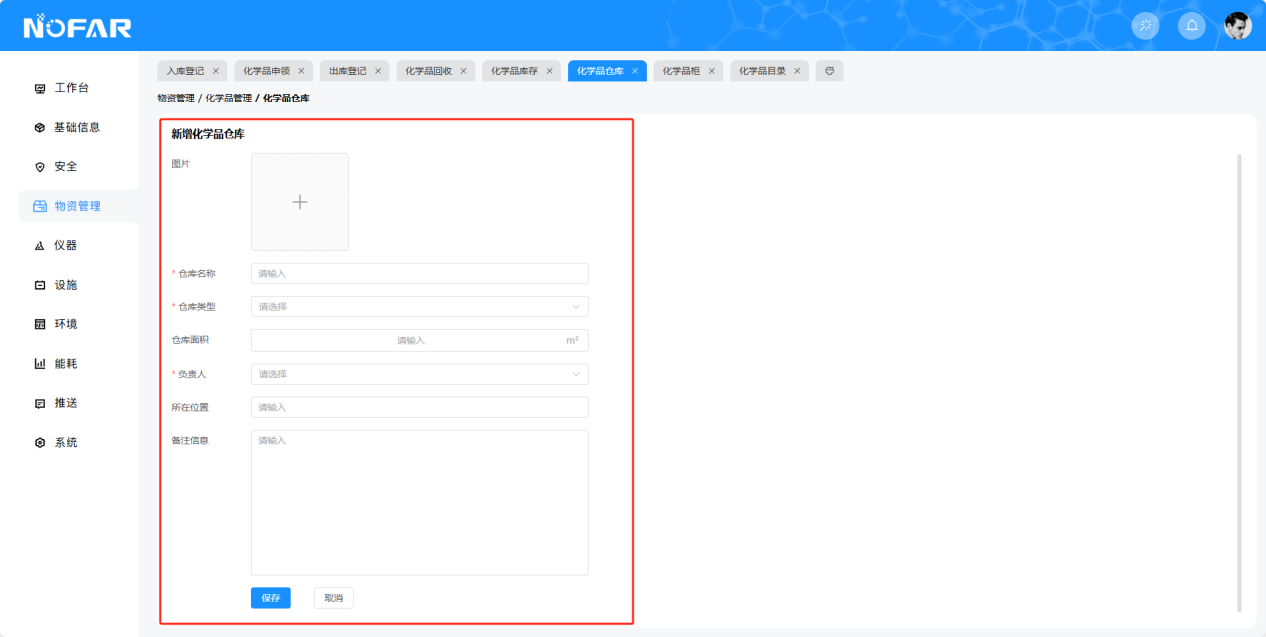
Photo: New chemical warehouse
The relevant parameters are described as follows:
parameter | illustrate |
picture | Optional, upload warehouse pictures |
Warehouse Name | Required |
Warehouse Type | Required, including: Storage warehouse: used to store chemicals Recycling transfer warehouse: used to recycle expired or damaged chemicals |
Warehouse area | Optional |
Person in charge | Required |
Location | Optional. Fill in the warehouse location according to the actual situation of the warehouse, such as: Second Floor of the Chemical Laboratory Building |
Remarks | Optional |
Chemical Cabinets
Enter the "Material Management" - "Chemical Cabinet" module, click the "Add Warehouse" button in the upper left corner, fill in the equipment information in the pop-up window and click "Save". It supports fuzzy search by equipment name and manufacturer, and supports filtering by equipment type. Click "Edit" or "Delete" in the operation bar to modify or delete the chemical cabinet.
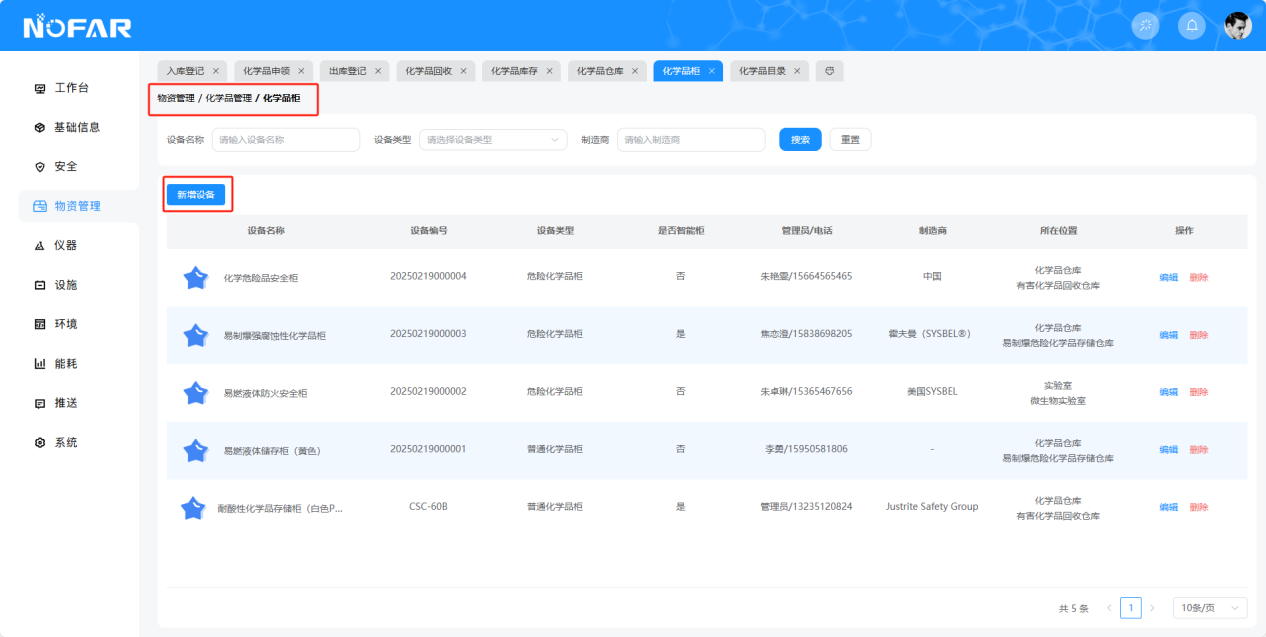
Photo: Chemical cabinet entrance
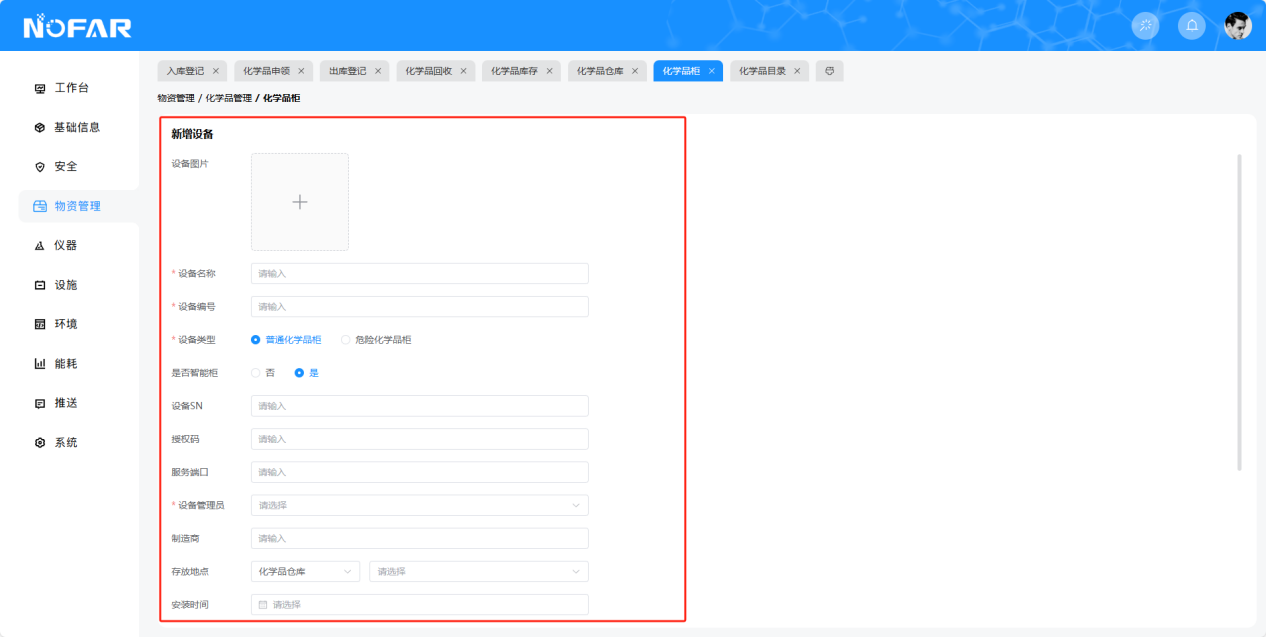
Figure: New chemical cabinet
The relevant parameters are described as follows:
parameter | illustrate |
picture | Optional, upload warehouse pictures |
Device Name | Required, Chemical cabinet name |
Equipment No. | Required, unique identifier of the device |
Device Type | Required, including ordinary chemical cabinets and hazardous chemical cab |

ISO Quality Management System Certification

Certified Software Enterprise

AAA Credit-Rated Enterprise

Member of the Laboratory Management Branch of the China Association of Higher Education

Member of Jiangsu Association for Artificial Intelligence

Council Member of Jiangsu Renewable Energy Industry Association

Nofar Information Technology Co., Ltd.


Facebook Instagram LinkedIn
Intelligentization of university laboratories
Intelligentization of inspection & testing laboratories
Intelligentization of biomedical laboratories
Intelligentization of petrochemical laboratories
Intelligentization of hospital & disease control laboratories
Intelligentization of scientific research institution laboratories
Intelligentization of new energy laboratories